ShutterBug
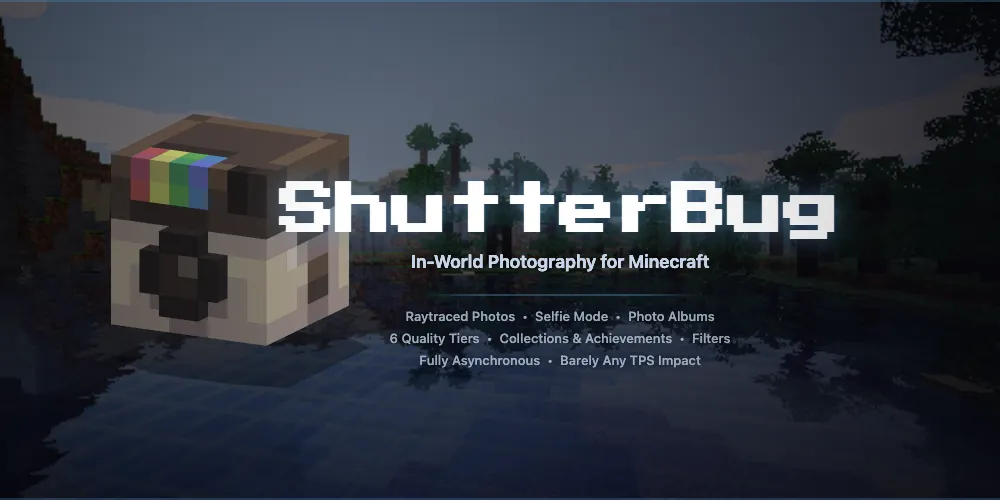
ShutterBug adds in-world Minecraft photography to your server. Players craft or receive a camera, frame a scene, tune camera settings, and turn the result into Minecraft map art. Albums add a collection layer, letting players track photographed subjects and build progress over time.
Start Here
If you are a player, start with Getting Started. The first steps are simple: get a camera, check /sb help, open /sb settings, and take your first photo.
If you are an admin, start with Admin Configuration and Permissions, then use the Screenshot Checklist when preparing your public server guide.
The main command is /sb. The alias /shutterbug can be used anywhere /sb is shown.
In-game help can point players to {GITBOOK_URL} for the full guide.
What Players Can Do
- Craft or receive a ShutterBug camera.
- Take Minecraft map photos from their current view.
- Use
/sb settingsto tune mode, size, FOV, exposure, and filters. - Use albums to track collection progress.
- See personalized
/sb helpoutput based on permissions and enabled features.
What Admins Configure
Admins control camera distribution, paper costs, render defaults, collections, language files, the public guide link, and which permission groups can access advanced or administrative commands.
Sepia Text Palette
ShutterBug's text palette uses a sepia photo look:
| Swatch | Hex |
|---|---|
| Deep shadow | #20220c |
| Dark sepia | #423e25 |
| Muted sepia | #746754 |
| Warm midtone | #b4a797 |
| Light paper | #d3c7b9 |
| Highlight paper | #dfd7cc |